Open the room from above.
Hide the ceiling and adjust the cut height to reveal the layout and recorded surfaces. Keep the whole space in view.
Hide ceilingAdjust cut height
 LiDAR 3DUS LAUNCH / IN BETA
Floor plans, room notes and grayscale 3D reference.
One saved scan. Processed on your device.
Scanning requires a supported LiDAR iPhone or iPad.
No account required. iOS / iPadOS 26+.
Review a completed grayscale model from above or from within. Change the view while keeping the saved scan intact.
Hide the ceiling and adjust the cut height to reveal the layout and recorded surfaces. Keep the whole space in view.
Enter the model, look around and move through the captured space. Revisit the room from a viewpoint a floor plan cannot give you.
Viewing-mode illustrations. Actual in-app examples follow accepted iPhone and iPad results.
Explore the viewing controls ↗Choose your work. Explore the images and workflows right here.
Illustrated workflows · Real app screenshots follow beta acceptance.
10 workflows to explore
Capture the existing layout. Bring a plan and 3D reference to the scope discussion.
Job PDF / 2D DXF / SVG / CSV / Project backup
Use the layout and notes as preliminary reference material. LiDAR 3D does not provide a built-in estimating system or guarantee bid quantities. Verify dimensions and quantities independently.
Keep the layout, 3D context and project notes together.
Job PDF / 2D DXF / CSV / Grayscale OBJ
The current workflow focuses on room layouts, spatial context and notes. Trade-specific engineering, fabrication and code-checking tools are not included.
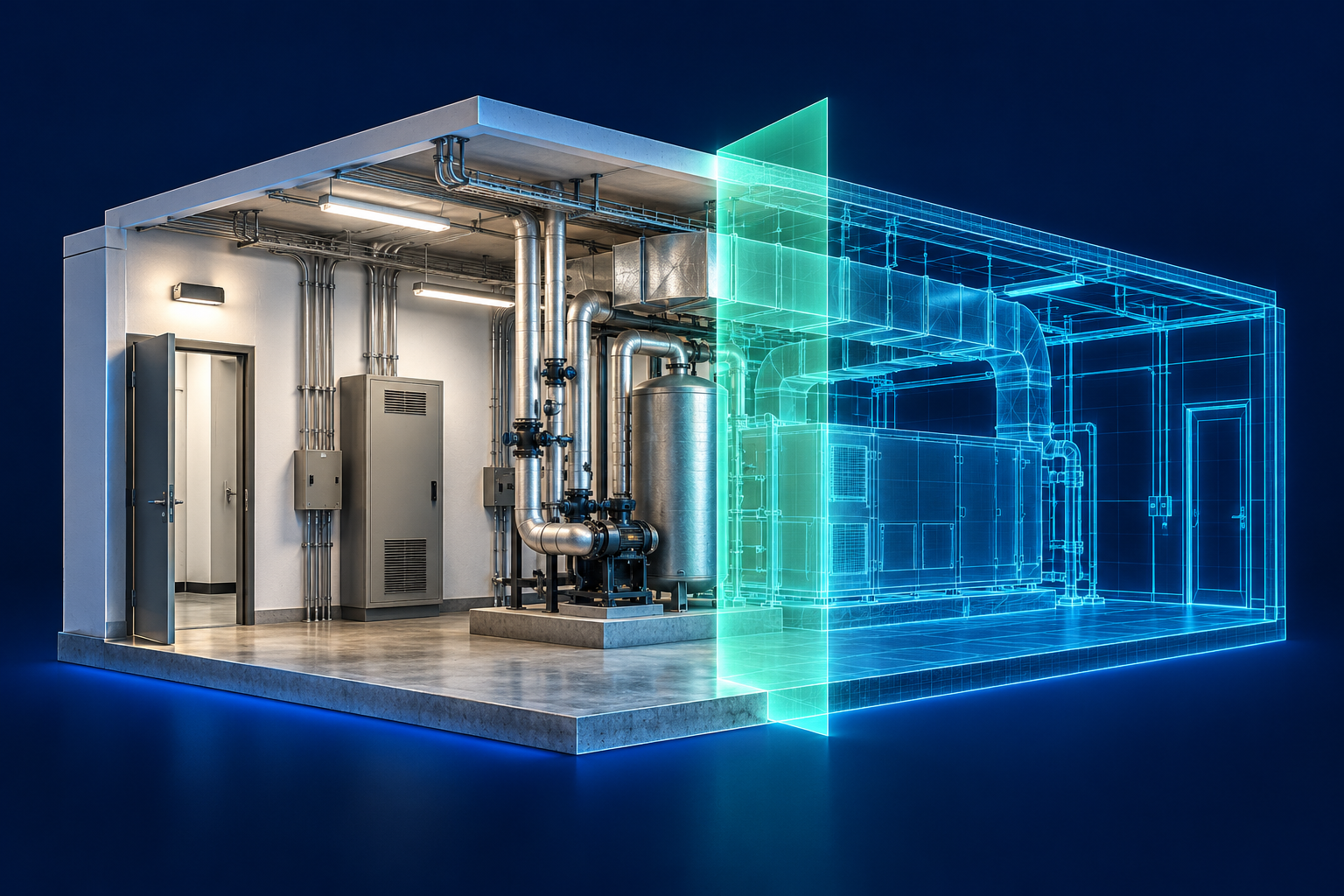
Keep room layout and 3D context close during mechanical site review.
Job PDF / 2D DXF / Grayscale OBJ / Project backup
Use it for room-level reference and documentation. Automatic equipment identification, certified clearances and mechanical performance calculations are not included.
Review the surrounding space and record the checks still needed on site.
Job PDF / 2D DXF / CSV / Completed grayscale OBJ
The current app does not automatically recognize pipes, calculate pipe diameters, design routes or produce spool drawings. Its role here is room-level reference and notes.
Save the layout and project notes for the next electrical site discussion.
Job PDF / 2D DXF / SVG / CSV / Project backup
Circuit mapping, automatic cable/conduit recognition and electrical design tools are not included. Use the app for room-level context and documentation.
Switch from room layout to 3D context for preliminary review.
Job PDF / 2D DXF / Measurement CSV / Grayscale OBJ
The app supports preliminary planning and documentation. It does not provide engineering analysis, certified surveys or a guaranteed measurement tolerance.
See the layout and architectural 3D together before the next design conversation.
Job PDF / 2D DXF / SVG plan / Grayscale OBJ
Use it as a preliminary room reference. Verify critical dimensions independently; the app does not guarantee survey tolerance or certified as-built drawings.
Keep the existing layout in view as the renovation conversation develops.
Job PDF / 2D DXF / SVG / CSV / Project backup
Built-in pricing, estimates and guaranteed quantity takeoffs are not included. Use the layout and notes as reference material, with independent measurements where needed.
Organize room references and notes for property planning and documentation.
Job PDF / Measurement CSV / Project backup
MLS, ANSI/GLA, appraisal and insurance compliance are not established by this app. Use the results for preliminary planning/documentation and obtain the required independent verification.
Save a room reference. Take a plan into the next contractor conversation.
Job PDF / Markup / Project backup
Use the plan, notes and grayscale 3D as preliminary room references. Scanning needs a supported LiDAR-equipped iPhone or iPad; verify critical dimensions independently before buying materials or starting work.
Choose walls, openings or supported room contents.
Shaded walls. Openings. Low-wall cutaways.
Explore recorded surfaces with monochrome photo detail.
Capture and process on device. No app account required. Measurements are estimates; verify critical dimensions independently.
Save distances, horizontal spans, height differences, angles and planar areas on completed 3D models. Compare selected dimensions with independent tape or laser readings.
Use Apple Pencil on a compatible iPad, or touch, to annotate saved plans, selected photos and model views. Keep drawings editable alongside the job details.
Create multi-page job PDFs with measurement schedules and selected markup pages. Share meter-based 2D DXF, CSV, plan files and completed grayscale OBJ.
Reference corrections affect report values while preserving original geometry. Markup is visual annotation on saved views. Measurements remain estimates; verify critical dimensions independently.
Explore measurements, markup & job reports ↗Capture. Measure. Mark up. Deliver.
Offer and saved-project details ↗Eligible 14-day trial at launch.
Then $149.99/year, billed annually. Renews automatically unless canceled. In beta; subscriptions are not yet available.
Scanning requires a supported LiDAR-equipped iPhone or iPad, camera access and iOS/iPadOS 26 or later. The app checks capture compatibility before you scan.
Read the device guide ↗Create floor plans, grayscale 3D, saved measurements and editable Pencil or touch markup. Build job PDF reports with selected notes, photos and markup pages, or export 2D DXF, SVG, CSV and completed grayscale OBJ.
Quick plans open without detailed reconstruction. Detailed processing starts when you choose Detailed 3D and can continue while you review plans in the same workspace. Closing the workspace pauses processing with saved checkpoints.
The live coverage gauge and guidance point out weak observations and views that need another angle. Coverage strength is separate from independently verified measurement accuracy.
Manually align separate sessions using shared features for building review. For supported, already placed recordings, review a small rigid overlap refinement before accepting it. Automatic global matching is not included.
Complete backups provide a manual project-transfer path. Projects remain local; automatic cloud synchronization is not included.
Use them for preliminary planning and documentation. Measurements are estimates; verify critical dimensions independently before construction or fabrication.
The app is in beta. US App Store availability is planned after testing and App Review. The planned annual subscription is not yet available.
Explore the workflow for your work while LiDAR 3D prepares for its US launch.
Find your workflow